
1. What Is SSD
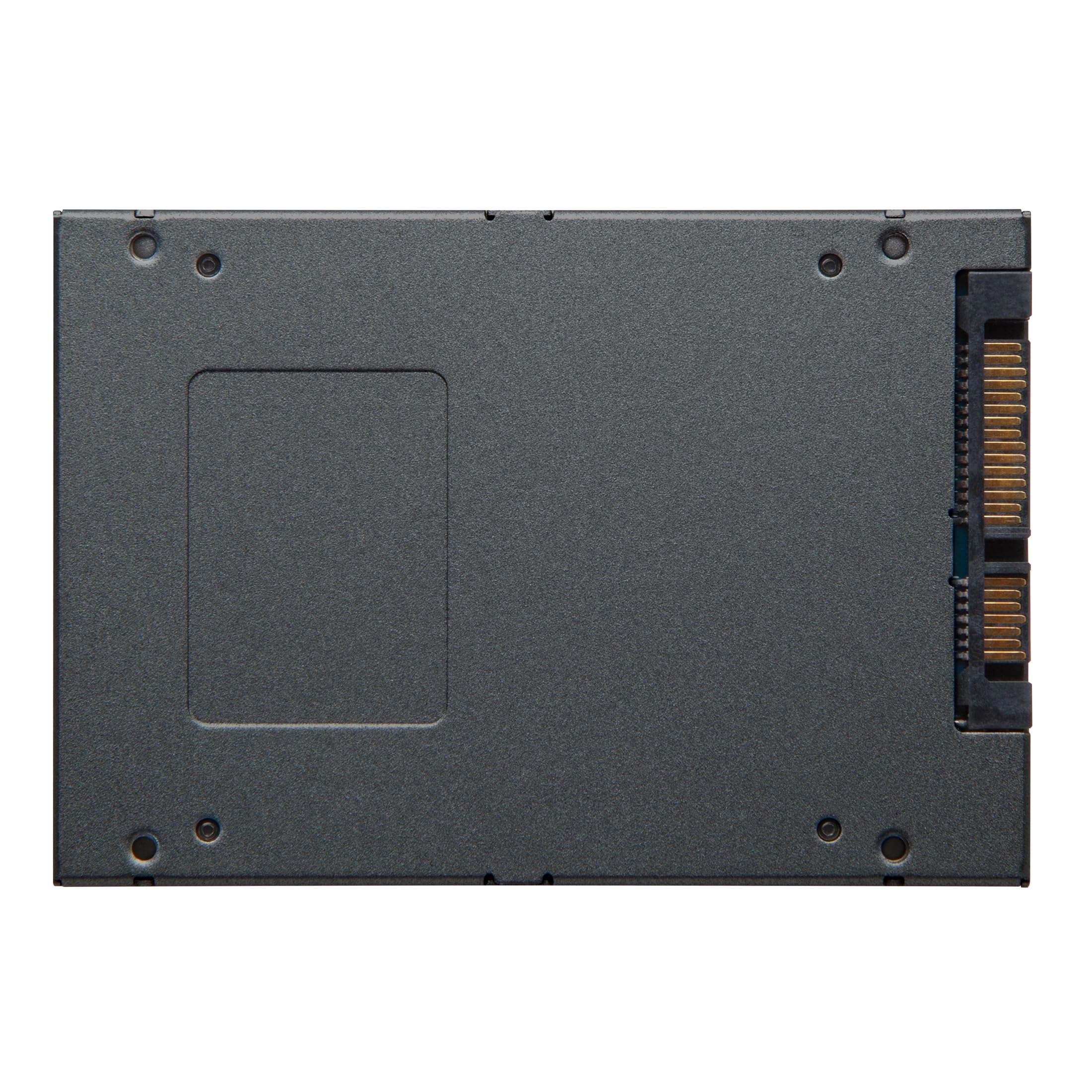
SSD stands for Solid State Drive. It is a hard drive built with an array of solid-state electronic memory chips, distinct from traditional mechanical hard disk drives (HDDs). It contains no rotating mechanical parts; you can think of it as an internal USB flash drive with ultra-large storage capacity and blazing-fast read/write speeds.
An SSD mainly consists of a controller, cache memory, and flash memory chips. Common interfaces today include SATA and M.2, most supporting the NVMe protocol. SSDs boot up instantly, run silently, and are shock-resistant, though they come at a higher price and have a limited total write lifespan. They are widely used in PCs, automotive equipment, medical devices and more. With technological advancements in 2026, SSDs have become even more prevalent in gaming devices and enterprise storage systems.
2. Key Differences Between SSD and Mechanical HDD
Huge Speed Gap
Mechanical hard drives deliver read/write speeds ranging from 50MB/s to 200MB/s, while standard SSDs easily exceed 500MB/s. High-performance NVMe SSDs can hit speeds above 7000MB/s, drastically cutting boot times and game loading delays.
Shock Resistance
HDDs house delicate moving mechanical components and are vulnerable to drops and vibrations. SSDs are purely chip-based with no moving parts, so they rarely fail from shaking or jolting — ideal for laptops.
Noise & Power Consumption
Spinning HDDs generate audible noise and high heat during operation. SSDs operate silently with low power draw, extending device battery life.
Price & Storage Capacity
Mechanical hard drives offer low cost per terabyte and large capacities, perfect for storing movies and photos. SSDs carry a higher cost for the same storage size, making them best for operating systems and core software.
Lifespan & Data Retention
HDDs boast long theoretical lifespans but risk data loss during sudden power outages. SSDs have a limited total bytes written (TBW) endurance rating, and may lose stored data if left unpowered for extended periods; regular power cycles are recommended.
3. Core Parameters to Check Before Purchase
Interfaces & Protocols
- SATA Interface: The top choice for older PC upgrades, capped at roughly 550MB/s with excellent hardware compatibility.
- M.2 Interface: The mainstream modern form factor with compact dimensions. Two variants exist: SATA protocol and NVMe protocol, with NVMe delivering vastly superior speeds.
- PCIe Generation: PCIe 3.0, 4.0 and 5.0. Higher generations yield faster performance — always confirm motherboard compatibility before buying.
Flash Memory Chips
- TLC Flash: Current mainstream option, striking a balanced mix of speed and endurance for everyday consumer use.
- QLC Flash: Offers larger capacities at lower cost, but with shorter write lifespans; suitable as secondary storage for file archiving.
- SLC / MLC Flash: Extremely long endurance but prohibitively expensive, rarely seen in consumer-grade products today.
Brand & DRAM Cache
- Original Manufacturers: Brands like Samsung, Western Digital and ZHITAI produce their own flash chips for stable, reliable performance — the preferred pick for most buyers.
- DRAM Cache: Drives with dedicated independent cache deliver stronger performance at a premium. Many cacheless modern SSDs perform adequately for daily use with negligible real-world differences.
4. Important Usage Tips for SSDs
- Skip Disk Defragmentation: Unlike HDDs, SSDs do not require defragging; the process only shortens the drive’s lifespan.
- Reserve Free Storage Space: Avoid filling the drive to full capacity. Leave around 15% free space to allow the SSD’s internal wear-leveling algorithm to maintain consistent speeds.
- Monitor Total Bytes Written (TBW): All SSDs have a TBW write endurance limit. This limit is rarely reached in regular home use, but avoid using SSDs as dedicated high-volume download drives.
- Manage Heat Dissipation: High-speed M.2 SSDs generate significant heat. A heatsink is strongly recommended to prevent thermal throttling and speed drops.
